How to merge PDF files without uploading them
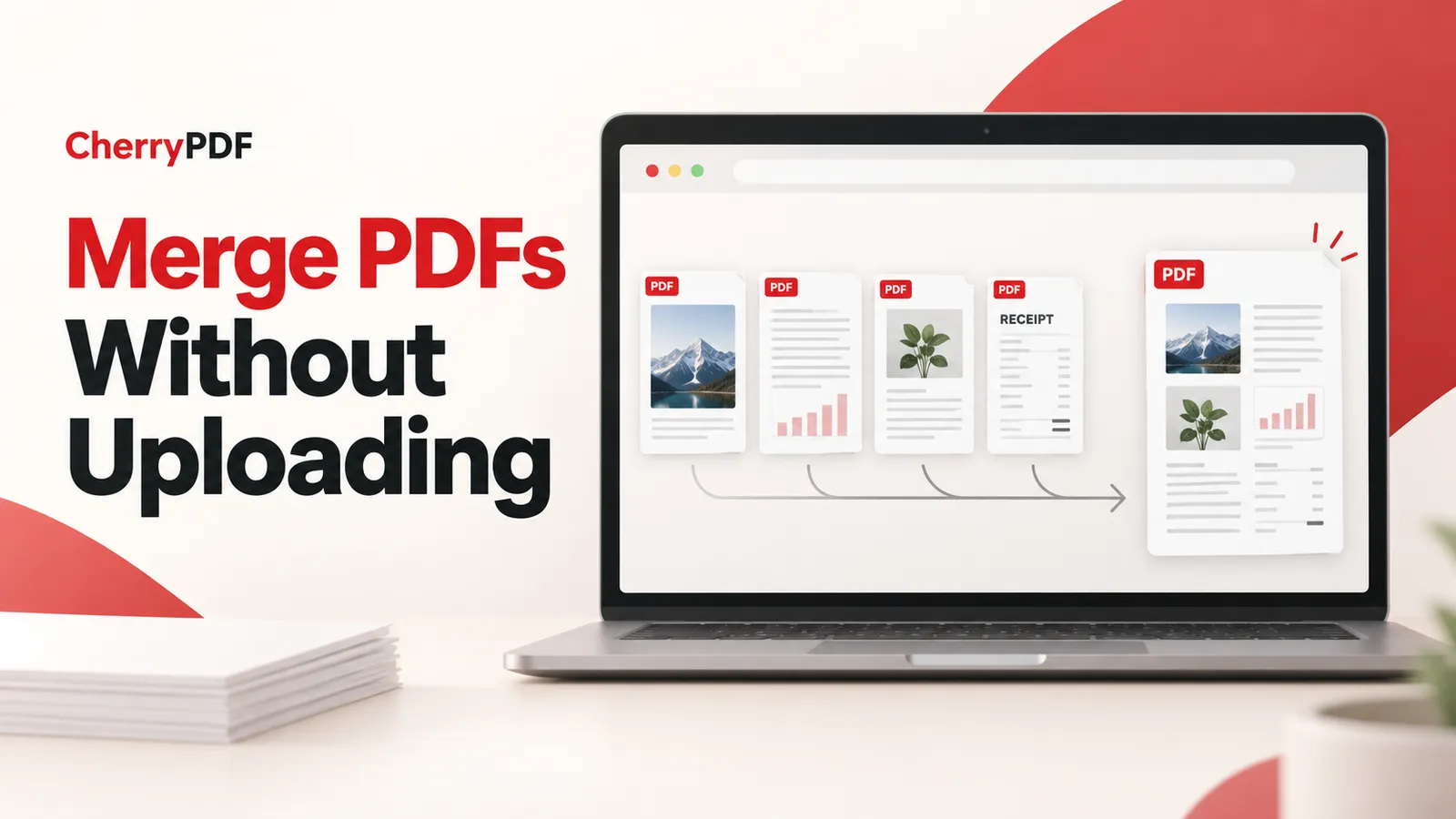
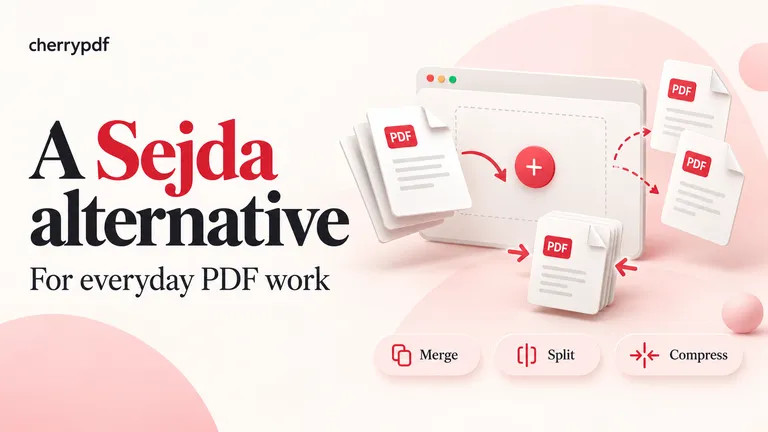
You can merge PDF files without uploading them for processing in CherryPDF. Add the documents, arrange the pages and build one PDF in your browser. To keep the finished document local too, turn off the option to keep a copy in your account before downloading. The download itself requires a free account.
That distinction matters when you are combining internal reports, expense receipts or an application pack. Local processing describes where the PDF is handled. Signing in and choosing to save an account copy are separate parts of the workflow.
Start with the order the reader needs
Imagine a submission that needs a cover sheet, a two-page statement and six receipts. Name or arrange the source files before opening the merger so you can recognize them. The final PDF should follow the recipient’s requested order, which may differ from the order in which the files were downloaded.
Decide whether every page belongs in the pack. A report’s cover, contents page and old appendix may be unnecessary. Selecting the useful pages before merging makes the preview easier to check and reduces the chance of sending an unrelated attachment.
How to combine the files in CherryPDF
- Open Merge PDF and add your PDFs. JPG and PNG images can be included as pages, so receipt photos do not need a separate conversion first.
- Drag the files into reading order. Check the first and last page of each document to confirm where one section ends and the next begins.
- Use the page previews to choose the pages you need and correct sideways pages. A landscape PDF page can remain landscape between portrait pages.
- Run the merge and open the result preview. Compare the final page count with the pages you intended to include.
- Turn off the keep-copy option if you want only a local file. Sign in to a free account when prompted, download the PDF, and reopen it before sending it.
For the example above, the expected total is nine pages: one cover sheet, two statement pages and six single-page receipts. A different count is a reason to check for a missing receipt, a duplicated page or a source file that contained more pages than expected. This is a simple check you can perform without rereading every word.
What stays on your device, and what can be saved online
CherryPDF’s merge operation reads the files and assembles the result in the browser. It does not need to send the documents to a processing server. The keep-copy setting, however, starts enabled. Once you sign in and download, leaving that setting on saves the output to your account by uploading it.
Turn it off in the result dialog before downloading when your aim is a local-only document workflow. This does not make the website anonymous or offline: loading the site and signing in still use the network. It means you are not using the optional account storage for the PDF result.
The CherryPDF privacy policy explains that saved files remain in an account for 30 days from upload. Keep your own downloaded copy if you need the document for longer. This article’s local-processing instructions apply to Merge PDF; other tools, including OCR and Office conversions, use a server.
Mixed page sizes are allowed
The merger preserves the size and orientation of each PDF page. A landscape spreadsheet export can sit between A4 portrait pages without being forced into the same shape. That is useful when the reader will view the pack on screen.
If the recipient needs a uniform printed document, review those mixed sizes before sending. Merging and resizing solve different problems. Do not assume that putting documents into one file also makes every page fit the same paper size.
There is no fixed file-count cap, but memory matters
CherryPDF does not set a fixed maximum number of files for the local merger. The browser still needs enough memory to open them and build the output. Many small text PDFs and a few very large scans place different demands on the same device.
If a large job struggles, close unnecessary tabs or divide it into smaller batches. You can then merge the batch outputs. Check the joins between batches, where an omitted or duplicated page is easiest to miss. Avoid assuming that a successful small merge proves a much larger collection will fit.
Finish the pack before you send it
Use Organize PDF if you discover an ordering mistake in the combined document. If the recipient needs only one section, Extract PDF pages can produce a separate file. When the pack is too large for the destination, Compress PDF can reduce image weight; check the resulting pages for readability.
Gather the source files, establish the expected page count and open CherryPDF Merge PDF. The preview gives you a chance to catch the ordinary mistakes before the document leaves your hands.