iLovePDF alternative: when CherryPDF makes sense
CherryPDF is an iLovePDF alternative worth considering when your main jobs are combining documents, reducing attachment sizes, or rearranging pages. Those tools process the PDF in your browser, and CherryPDF currently has no paid tier or output watermark. You can try the tools without registering; downloading a result requires a free account.
The most useful comparison is the job you need to finish. A monthly expense pack has different requirements from a batch conversion workflow. CherryPDF makes a strong case for the first, while iLovePDF has paid options for broader workflows and installed apps.
Where the differences matter
| Need | CherryPDF | iLovePDF |
|---|---|---|
| Combine a large set of PDFs | No fixed merge file-count cap; available browser memory is the practical limit. | Basic allows 25 files per merge task; Premium lists 500. |
| Keep merge processing on your device | Merging runs in the browser. Disable account-copy saving to keep the result local too. | The web workflow uses uploaded files; the separate Desktop app offers local processing. |
| Use a paid plan across devices | No paid tier at present. | Premium includes web, mobile and desktop access. |
The iLovePDF allowances and plan features above come from its official pricing comparison; local processing is described on its Desktop page. Details were checked on 28 October 2026. Both products have free tools, so paying is not a prerequisite for an ordinary PDF task in either service.
A useful fit for receipts, reports and application packs
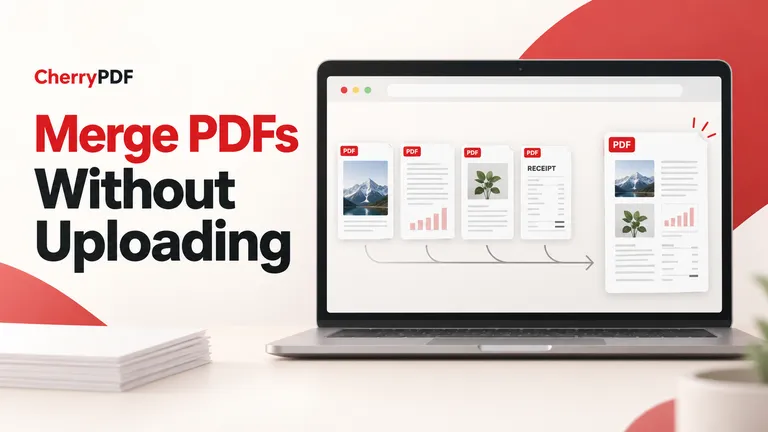
Suppose you have a cover letter, several reports and a folder of receipts to submit as one document. With CherryPDF Merge PDF, you can add PDFs alongside JPG and PNG images, arrange them in reading order, and choose only the pages you need. Each PDF page keeps its size and orientation, including landscape pages between portrait documents.
The lack of a fixed file-count limit matters when a pack contains many small files. It does not mean any collection will fit: a browser still needs memory for the documents and their previews. If a large group of scans becomes difficult to handle, merge smaller batches or use a computer with more available memory.
- Add the documents and images to Merge PDF, then put them in the order the recipient should read them.
- Inspect the page previews. Exclude unwanted pages and correct sideways pages before producing the combined file.
- Review the result. If you want only a local download, turn off the option to keep a copy in your account.
- Sign in to a free account and download the PDF. Reopen it to confirm the page count and order.
If the finished pack is too large to send, open Compress PDF. Its target-size setting lets you specify a size to aim for. Image-heavy files offer more room for reduction than files that mainly contain text, and a requested target is not guaranteed.
Local processing has a specific meaning
Merge, Split and Compress process files locally. Account storage is a separate choice: the keep-copy option starts enabled, and saving the output to your account uploads that copy. Switch it off when you want the document workflow to remain on your device. Account sign-in still communicates with the service.
Other CherryPDF features use a server. Office conversions and OCR upload files, and exporting an edited existing PDF also uses the server. The privacy policy explains the distinction and the 30-day retention for saved files. Do not extend a local merge claim to every tool on the site.
iLovePDF also documents file handling: its security page says processed files are automatically deleted within two hours and can be deleted manually from the download screen. The choice here is whether to upload for processing, not an assumption that another service has no privacy safeguards.
When keeping iLovePDF makes sense
If you already depend on iLovePDF’s installed apps or Premium workflows, those may be more valuable than changing your everyday merger. Its Basic plan may also cover a small, occasional job perfectly well. CherryPDF is most compelling when local browser processing and a free toolset match the work in front of you.
Check the exact CherryPDF tool before moving a larger workflow. For example, PDF to Word accepts up to 25 MB and 50 pages; that restriction is separate from the browser merger’s memory-based limit. There is no single unlimited allowance across the product.
For a practical starting point, gather the files for your next report or submission and assemble them in CherryPDF Merge PDF. You can inspect the combined result before signing in to download it.