How to compare two PDF files and review the changes
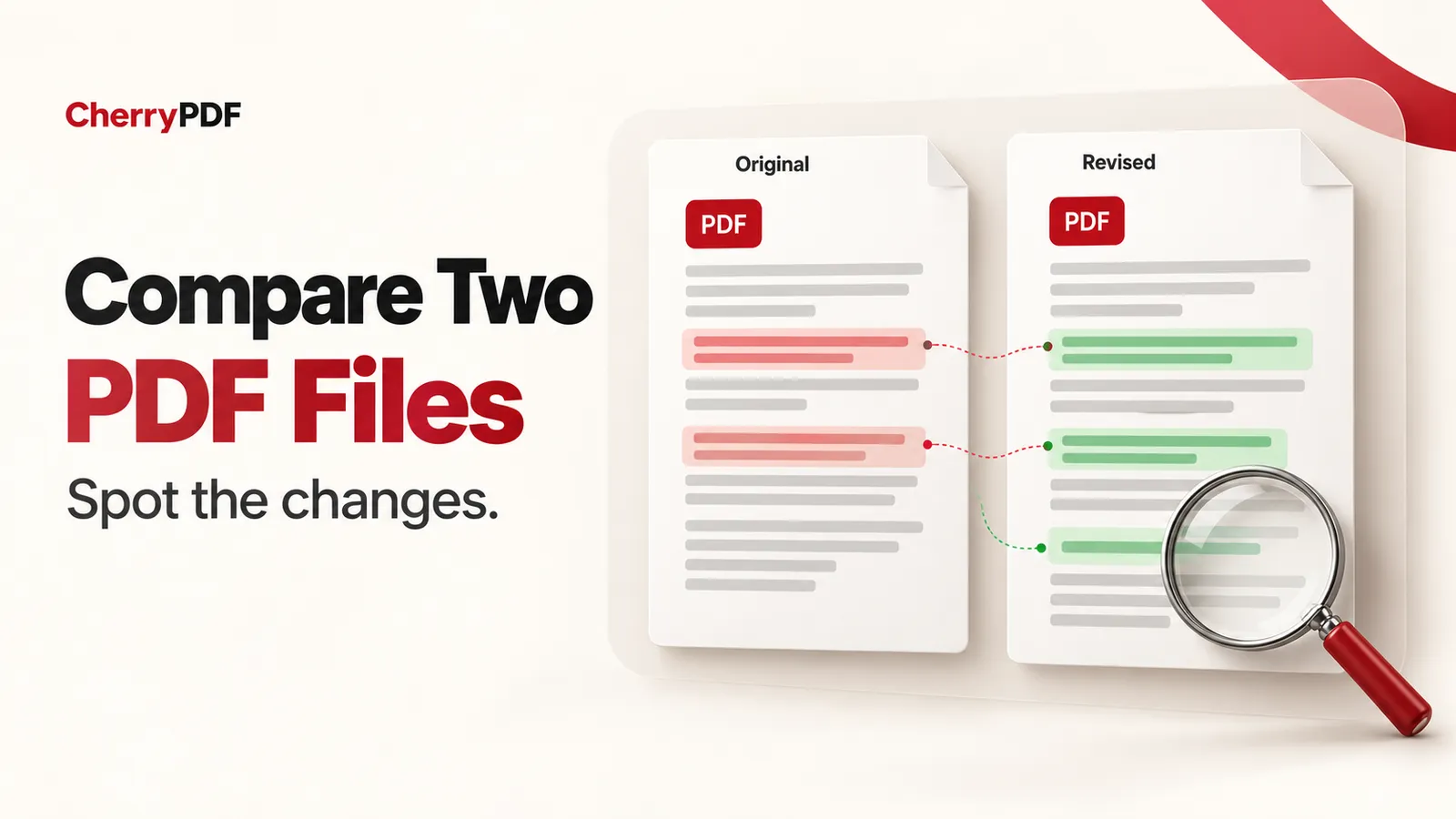
To compare two PDF files, load the earlier version as Original and the newer version as Revised in CherryPDF Compare PDF. It displays the documents side by side and lists detected changes. Both files are processed in your browser, and you can review the comparison without creating an account.
This is useful when a revised proposal arrives with a note saying that only the price changed. You can inspect the changed amount, then look for other edits to dates, wording or layout. Treat the report as a review aid: the meaning and importance of a change still need your judgment.
Choose the right pair of files
Use the last agreed version as the original, not simply the oldest file in your downloads folder. Put the incoming revision in the second slot. The direction matters because the change report labels old and new content; swapping the files reverses that account of the edit.
Give the files names you can distinguish at a glance. If both are called proposal.pdf, rename your local copies to show their dates or revision labels before starting. Keep both originals so that someone reviewing the report later can identify the documents it describes.
How to compare the PDFs in CherryPDF
- Open Compare PDF and choose the original file, then the revised file.
- Select Compare PDFs. Use the side-by-side pages and synchronized scrolling to keep the corresponding sections in view.
- Review the change list. Detected differences are grouped by page and classified as modified, added, removed or moved.
- Select a listed change and examine the surrounding text or object on the page. Check the old and new values rather than relying only on the change count.
- Use Preview to inspect the report. Sign in to a free account if you want to download the PDF report for your records.
Read text changes in context
In Semantic Text mode, the comparison can identify changes to text and formatting, along with changes to document objects. A revised amount such as 1,200 becoming 1,400 needs attention, but so does a nearby phrase that changes what the amount includes. A correct number can still belong to an unexpected revision.
Check names, reference numbers, dates and qualifications around a changed sentence. If a paragraph was moved, read it in its new location. The same wording can have a different practical effect under another heading, even though the words themselves have not changed.
CherryPDF also offers Content Overlay for reviewing content in the same visual space. Use the view that helps you understand the difference, then confirm it against the readable pages. A highlighted region is a place to inspect, not a decision about whether the change should be accepted.
Look beyond the wording
The comparison supports more than text substitutions. It can report changes to formatting, shapes, images, links, comments, form fields, page geometry and document properties. That makes it useful for a revised brochure, a completed form or a report whose figures have been replaced.
The PDFs do not need to contain the same number of pages. Pages found only in one version can be reported as added or removed. If a document suddenly gains an appendix, check its contents instead of treating the higher page count as an incidental formatting difference.
For a proposal review, a useful sequence is to check numerical changes first, read the surrounding conditions, inspect added or removed pages, and then examine layout changes that could hide or separate important information. This is a review method, not an automated approval process.
Scans need a text layer for word-level comparison
A scanned page can look full of words while containing no actual text objects. CherryPDF cannot compare those words line by line in that state. A scan can instead appear as added or removed content, which is much less useful when you are looking for a single changed sentence.
Run the relevant files through OCR PDF first if you need a searchable text layer, and check the recognized wording before comparing. OCR errors can create apparent differences that were never present in the source pages. Give particular attention to small numbers and characters that look alike.
OCR uploads the file for server processing. Compare PDF itself processes the two files locally. If your requirement is to avoid uploading documents, that distinction affects whether the OCR preparation step is suitable. CherryPDF’s privacy policy describes the processing locations.
Keep a record that another person can follow
The downloadable report includes page references and old and new text for detected changes. A free account is needed to download it, and CherryPDF adds no watermark. Keep the report together with the two source versions; a report alone does not replace the documents being reviewed.
If an accepted revision needs a small correction, you can open Edit PDF, then compare the corrected export against the earlier version again. Editing an existing PDF has a server-based export step, so it is a separate workflow from the local comparison.
Open CherryPDF Compare PDF with the two versions you need to review. Start with the differences that affect the document’s purpose, then use the page views to check what changed around them.